
Where you build, sort, deduplicate, and export palette assets – from adding swatches one at a time to bulk-importing a history strip and turning a multi-select into a gradient in a single right-click.
Summary
A palette is just a ColorPaletteAsset (see Palette and Gradient assets) with an ordered list of entries; the work is in building that list, keeping it disciplined, and getting it out to other systems. Chroma’s Palette tab is structured for that work specifically: pick a swatch from the Color Editor, drop it in with one click, name it, optionally tag it or assign a semantic role, sort the whole palette by hue when the picking is done, deduplicate, export.
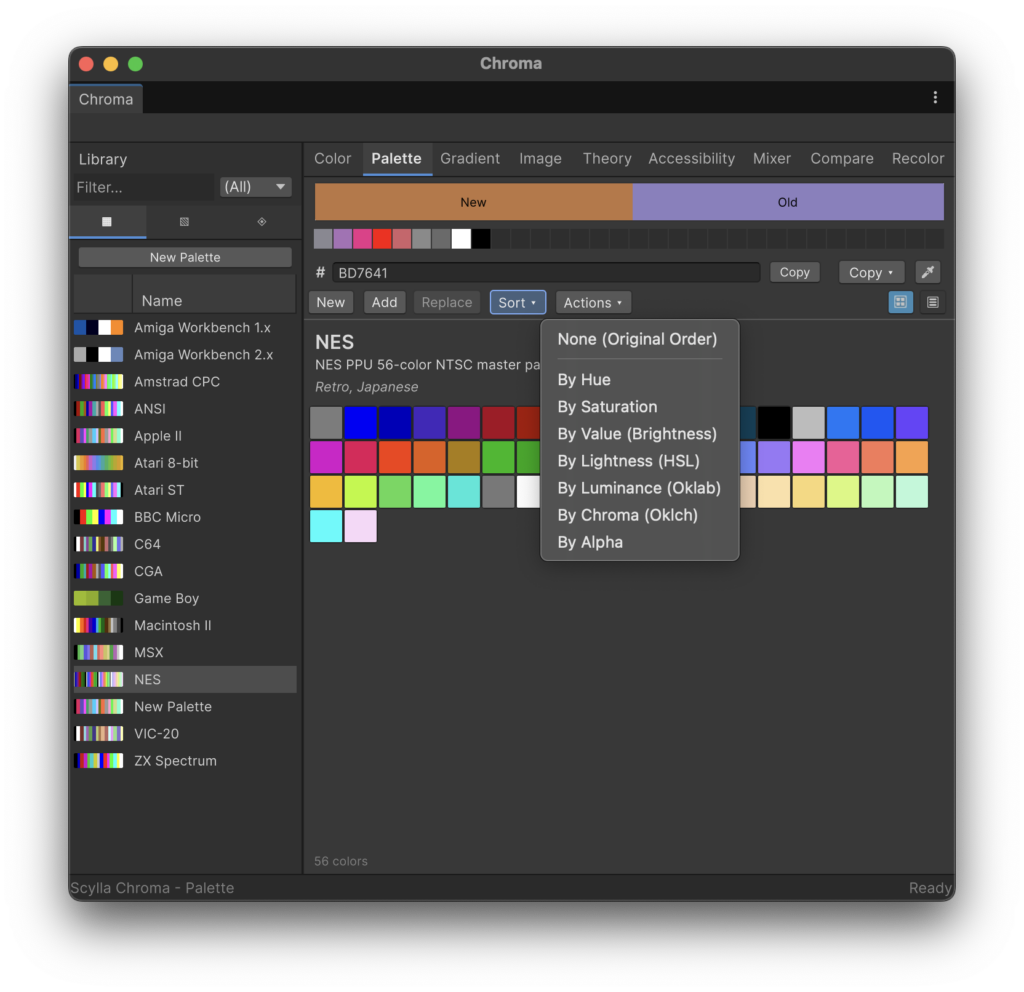
Two views share the same underlying asset. The grid view is the fast browse mode: a responsive flex-wrap of square swatches, multi-select with marquee or Shift-click, drag-reorder, right-click for the per-swatch context menu. The list view is the metadata mode: tabular columns for Color, Name, Role, and Tags, click any column header to sort by it, double-click a cell to edit in place. Toggle between the two from the toolbar; the active palette is the same in both views.
You can use the Palette tab to:
- Build a palette by piping colors from the Color tab into the Palette tab via the Add button (one at a time) or Shift+Click Add (the recent history strip plus the Old/New preview in a single click).
- Re-order, multi-select, and deduplicate a palette without leaving the swatch grid.
- Tag, lock, or assign a semantic role to swatches so the rest of the project can address them by intent instead of by index.
- Sort by hue, saturation, value, lightness, luminance (Oklab perceptual color space), chroma (Oklch colorfulness axis), or alpha; restore the original order at any time.
- Convert a multi-select of swatches into a brand-new gradient asset in one menu action.
Features
- Two interchangeable views. Grid (responsive flex-wrap, the fast browse mode) and List (
MultiColumnListViewwith Color / Name / Role / Tags columns, the metadata mode). Toggle from the toolbar; both edit the same underlying asset. - Toolbar with six controls. New (Shift+Click unloads the active palette without creating a new one), Add (Shift+Click bulk-adds the recent color history strip plus Old and New colors), Replace (single selection only), Sort (dropdown with eight options, including None), Actions (dropdown with Remove Duplicates plus Import / Export submenus), Grid / List view toggle.
- Per-swatch context menu. Right-click any swatch (or any selected swatch, when multi-selected) for Duplicate / Duplicate N Entries, Replace with Active Color (single-select only), To Gradient (multi-select only, two or more entries required), Copy Selected As (a six-format submenu), and Remove / Remove N Entries.
- Copy Selected As (multi-color copy). A swatch context-menu submenu that copies every selected swatch to the clipboard, one color per line in palette order, in any of six text formats: Hex (
#RRGGBB/#RRGGBBAA), UnityColor, UnityColor32, CSSrgb()/rgba(), HLSLfloat4, and JSON (one object per line). Available for any selection of one or more swatches. Per-color output is identical to the Color tab’s single-color Copy menu – both paths share one formatter. The status bar confirms withCopied N colors as <format>. - Multi-select. Click to select a single swatch, Shift+click to extend a contiguous range, Cmd/Ctrl+click to toggle individual swatches. The active selection is shared between grid and list view, so a selection made in grid persists when switching to list and back.
- Drag-reorder. Drag any selected swatch (or multi-select) to a new position in the grid. The drop position is indicated by an insertion line; the asset’s entries array is reordered in a single Undo step.
- Inline name editing. Double-click the Name cell in list view to edit the swatch name in place; commit on Enter or focus-loss. The palette’s own name and description are also editable in place at the top of the swatch area.
- Per-swatch metadata. Each entry carries a Color, a Name (auto-generated from the nearest named-color match on add, editable in list view), a Role (an optional
ColorRoleenum slot for semantic intent like Primary / Secondary / Accent), an IsLocked flag (prevents edit and delete until cleared via context menu), and an optional list of Tags for free-form grouping. - Palette-level tags. The palette asset itself carries its own list of tags, separate from per-swatch tags. Double-click the Tags label below the palette name to edit them as a comma-separated string. The Library sidebar uses palette-level tags for filter dropdowns.
- Seven sort modes plus None. The Sort dropdown reorders the palette in place: None (Original Order) to restore the pre-sort order, By Hue (grayscale-aware, achromatic entries form a block before chromatic ones), By Saturation, By Value (Brightness), By Lightness (HSL), By Luminance (Oklab), By Chroma (Oklch), By Alpha. Sorting is a single Undo step.
- Remove Duplicates. Collapses every group of entries that share the same color into the first occurrence, preserving the first occurrence’s name, role, tags, and lock flag. Comparison uses the byte-quantized
Color32representation, so colors authored to the same hex always collapse even if sub-ULP float drift crept in. Reports the number of removals in the status bar; auto-reverts the message after three seconds. - Convert to Gradient (multi-select). Right-click two or more selected swatches and choose To Gradient. Chroma creates a fresh
ColorGradientAssetwith the selected swatches placed as evenly-spaced stops, opens it in the Gradient Editor, and selects it in the library sidebar’s Gradients sub-tab. - Drag swatches into the Gradient Editor. Drag any swatch (or multi-select) from the Palette tab’s grid view directly onto the gradient bar in the Gradient tab to insert stops at the drop position. The just-inserted stops are auto-selected.
- Asset-level Undo / Redo refresh. The panel subscribes to Unity’s undo-redo callback, so Cmd/Ctrl+Z / Y immediately rebuilds the grid and list view. There is no manual refresh button because there does not need to be one.
Recipes
Each recipe here is self-contained – you can jump directly to the one that matches what you’re trying to do. They don’t build on each other. Start with the first one if you’ve never opened the Palette tab before.
Create or load a palette
Problem. You want to start a new palette for a game jam sprint or pick up an existing one. The tab shows a placeholder until something is loaded.
Solution. Click New in the Palette toolbar to create a fresh ColorPaletteAsset under the configured palette directory (default Assets/Scylla/Resources/Color/Palettes/, configurable under Project Settings > Scylla). The new palette loads immediately and appears selected in the Library sidebar’s Palettes sub-tab. To give it a name before adding colors, double-click the title field above the swatch area and type a new name, then press Enter or click away.
To load an existing palette, click any entry in the library sidebar’s Palettes sub-tab, or drag a palette asset from the Project window onto the Palette tab. Chroma persists the loaded palette’s GUID, so reopening the window restores it automatically after a Unity session restart or project reopen.
Shift+click the New button to unload the active palette without creating a new one. This is the right move when you want to load a different palette from elsewhere and don’t need the current one to remain the next-loaded asset.
Add swatches to a palette
Problem. You’ve assembled a set of reference colors in the Color tab and want to commit them to the palette – either one at a time as you finalize each color, or all at once after sampling a batch from a screenshot.
Solution. The fastest single-color path is to pick a color in the Color Editor and click Add in the Palette toolbar. The active color becomes a new entry at the end of the palette. The entry is auto-named from the nearest entry in the configured named-color database, so a deep blue lands as something like “Navy Blue” rather than a generic placeholder.
For bulk add, Shift+click the Add button. This pushes every color in the recent history strip (oldest first), then the Old preview swatch, then the New preview swatch onto the palette in a single Undo step. Use this after sampling several reference colors from a reference image so you commit them as a set without adding each one individually.
You can also drag swatches from the favorites strip, from another loaded palette, or from a ColorSwatchCollectionAsset in the Library directly onto the grid. The drop position determines insertion order.
Edit a swatch’s metadata
Problem. You’ve added a swatch but the auto-generated name is wrong, or you want to assign a semantic role so code can look up the “Primary” color by name rather than by index.
Solution. Switch the view to List (toolbar) to edit metadata efficiently. Each row has four columns:
- Color. Inline color picker. Click the swatch to open the color picker; or switch to the Color Editor, pick the desired color, and use the swatch context menu’s Replace with Active Color.
- Name. Double-click to edit in place. Commit on Enter or focus-loss; Escape cancels.
- Role. Dropdown of
ColorRolevalues (None, Primary, Secondary, Accent, Background, Foreground, and others). Optional; defaults to None. - Tags. Comma-separated string. Each tag is a free-form label; conventions are project-specific.
To lock a swatch so it can’t be edited or deleted without unlocking first, right-click it and choose Lock. A small lock indicator appears on the swatch in the grid; actions on locked swatches gate behind an unlock confirmation. Locked swatches are still movable via drag-reorder and still participate in sort operations – only edit and delete are gated.
Reorder swatches and work with multi-select
Problem. You’ve added colors in sampling order but want them grouped by hue for a handoff, or you need to remove a batch of swatches at once.
Solution. In Grid view, click any swatch to select it. Drag the selection to a new position; the insertion line indicates the drop slot. Hold Shift while clicking to extend a contiguous range; hold Cmd / Ctrl to toggle individual swatches in and out of the selection. Press Cmd/Ctrl+A to select all swatches at once.
Multi-select carries into the context menu: Duplicate becomes Duplicate N Entries, Remove becomes Remove N Entries, and To Gradient unlocks once two or more entries are selected.
The arrow keys cycle through swatches (wrapping at the end), Home / End jump to the first / last swatch, and Delete / Backspace removes the current selection.
The selection is shared between grid and list view, so a range made in grid persists when you switch to list and back.
Sort a palette by perceptual lightness or hue
Problem. You’ve picked a full palette and the swatches are in sampling order – visually noisy and hard to hand off to an artist or read in a style guide. You want them ordered in a way that makes sense visually.
Solution. Click Sort in the toolbar and choose a sort mode. The options map to different perceptual or technical criteria:
- None (Original Order). Restores the order the palette was in before the first sort. The pre-sort order is captured on the first sort and remembered until the palette is reloaded, so you can experiment with several sort modes and always return to where you started.
- By Hue. HSV (Hue-Saturation-Value) hue, ascending. Grayscale-aware: achromatic entries (saturation close to zero) form a separate block at the beginning, before the chromatic entries, ordered by brightness within that block.
- By Saturation. HSV saturation, ascending (least saturated first).
- By Value (Brightness). HSV value, ascending (darkest first).
- By Lightness (HSL). HSL (Hue-Saturation-Lightness) lightness, ascending.
- By Luminance (Oklab). Oklab (a perceptually uniform color space designed by Björn Ottosson) luminance, ascending. This is usually what you want when sorting for “perceived brightness” rather than for HSV-defined brightness, because Oklab’s lightness axis better matches how the human visual system weights different hues.
- By Chroma (Oklch). Oklch (the cylindrical form of Oklab, where C is the chroma/colorfulness axis) chroma, ascending.
- By Alpha. Alpha channel, ascending (most transparent first).
Each sort is a single Undo step. None restores the captured pre-sort ordering as another Undo step. Sorting on a palette with locked entries moves the locked swatches normally – the lock flag gates edit and delete only, not sort position.
Strip duplicate swatches
Problem. A palette accumulated duplicates over several sessions – colors added from different reference images that happen to be the same hex value, or near-duplicates that crept in through gamma round-trips. You want to collapse them down to one occurrence of each color.
Solution. Click Actions in the toolbar and choose Remove Duplicates (the item is disabled when no palette is loaded). Chroma walks the palette in order, keeps the first occurrence of each color, and removes subsequent duplicates. The first occurrence’s name, role, tags, and lock flag are preserved.
The comparison uses the byte-quantized Color32 representation: each channel is rounded to its 0-255 integer value and packed into a single 32-bit key. Two swatches authored to the same hex always collapse, even if floating-point drift crept in from a gamma round-trip or a hex-parse rounding.
The status bar surfaces the result (“N duplicate colors removed” or “No duplicate colors found”), auto-reverting the message after three seconds.
Turn a multi-select into a gradient
Problem. You’ve settled on four colors that should form a ramp – say a sky transition from deep midnight blue to golden hour orange – and you want a ColorGradientAsset from them without manually placing stops in the Gradient Editor.
Solution. In Grid view, select two or more swatches (Shift+click or Cmd/Ctrl+click), right-click, and choose To Gradient. Chroma does the following in one step:
- Creates a new
ColorGradientAssetunder the configured gradient directory (defaultAssets/Scylla/Resources/Color/Gradients/). - Inserts the selected swatches as evenly-spaced color stops (first selection at offset 0, last at offset 1, the rest distributed linearly between).
- Opens the new gradient in the Gradient Editor.
- Selects the new gradient in the library sidebar’s Gradients sub-tab.
This is the canonical way to bootstrap a gradient from an existing palette. The reverse path – sampling a gradient at N points into a new palette – lives on the Gradient tab’s Actions > To Palette entry; see Gradient Editor.
Copy a selection of swatches as text
Problem. You want to hand a group of palette colors off as text – into a shader’s float4 constants, a CSS stylesheet, a JSON config, or a C# script – without copying each swatch one at a time through the Color tab.
Solution. Select one or more swatches in Grid or List view (Shift+click for a range, Cmd/Ctrl+click to toggle, Cmd/Ctrl+A for all), right-click, and choose Copy Selected As, then pick a format:
- Hex –
#RRGGBB, with the alpha pair appended only for non-opaque entries. - Unity Color –
new Color(...)literals with linear-space float arguments. - Unity Color32 –
new Color32(...)literals with 0-255 byte arguments. - CSS rgb() –
rgb(...)for opaque entries,rgba(...)for translucent ones. - HLSL float4 –
float4(...)with sRGB floats. - JSON – one
{"r":..,"g":..,"b":..,"a":..}object per line.
The colors land on the clipboard one per line, in palette order, and the status bar confirms Copied N colors as <format>. Each line is byte-identical to what the Color tab’s single-color Copy menu produces for that color, because both share the same formatter.
Drag swatches directly into an existing gradient
Problem. You already have a gradient loaded in the Gradient tab and want to insert one of your palette’s swatches at a specific position on the bar, rather than creating a brand-new gradient from scratch.
Solution. Drag any swatch (or multi-select) from the Palette tab’s grid view directly onto the gradient bar in the Gradient tab. The drop position on the bar determines the stop offset; the just-inserted stop is auto-selected so the Stop Inspector reflects it immediately. Multi-select drag works too – each dragged swatch becomes a separate stop at the drop position.
This pattern keeps the gradient authoring loop tight: dragging the same swatch to two positions on the bar reuses the swatch’s exact color twice without needing to re-enter the hex value.
Export a palette to ASE, GPL, or other formats
Problem. You’ve finished a palette in Chroma and need to get it into Photoshop, GIMP, Aseprite, or another tool – or you want to reference the colors from CSS or from a C# constant file in a game project that doesn’t use Chroma at runtime.
Solution. Click Actions > Export and pick a format. The export formats available are:
- Adobe Swatch Exchange (.ase) – readable by Photoshop, Illustrator, Sketch, Figma, and most other professional design tools.
- GIMP Palette (.gpl) – a plain-text format natively supported by GIMP, Krita, Aseprite, Inkscape, and many others.
- Lospec Palette (.json) – the JSON format used by Lospec’s palette browser.
- CSS Custom Properties (.css) – exports each swatch as a CSS (Cascading Style Sheets) custom property (CSS variable).
- C# Color Constants (.cs) – exports each swatch as a static
Colorfield in a C# file. - Chroma Palette JSON (.cpalette) – Chroma’s own round-trip format, the right pick for archiving a palette or sharing it between Chroma installations.
The full format matrix with color spaces, round-trip fidelity, and known limitations is on the Import and Export page.
The Import submenu in the same dropdown handles the reverse direction. Import formats are:
- Adobe Swatch Exchange (.ase)
- GIMP Palette (.gpl)
- Lospec Palette (.json)
- Photoshop Color Table (.act) – Adobe’s binary color table format
- Hex List (.hex, .txt) – a plain text list of hex color codes, one per line
- Chroma Palette JSON (.cpalette)
Imported palettes become new ColorPaletteAsset files under the configured palette directory and load into the editor automatically.
Keyboard shortcuts
| Key | Action |
|---|---|
| Left / Right | Cycle the selection through the swatch grid (wraps at the end). |
| Home / End | Jump the selection to the first / last swatch. |
| Delete / Backspace | Remove the current selection. |
| Cmd/Ctrl+A | Select all swatches in the active palette. |
| Shift+Click | Extend the selection to a contiguous range. |
| Cmd/Ctrl+Click | Toggle individual swatches in the selection. |
| Cmd/Ctrl+Z / Y | Undo / Redo (rebuilds the grid and list view immediately). |
Tips and pitfalls
- The grid and list views share state. Multi-selection, the active selection index, and the loaded palette are common; only the rendering differs. Switching views in the middle of a multi-select keeps the selection intact.
- “None (Original Order)” only restores the order captured at the first sort. If the palette has been edited (adds, removals, manual reorder) between sorts, None restores to the order from before the most recent sort, not to some earlier baseline. Use Cmd/Ctrl+Z for finer-grained reverts.
- “Remove Duplicates” uses byte-quantized equality. Two swatches differing only in the fourth decimal of a float channel are considered duplicates. This is intentional; it deduplicates hex round-trip drift. Swatches differing in alpha are not duplicates because alpha is part of the comparison key.
- Locked swatches still sort. The lock flag gates edit and delete only. Sorting and drag-reorder still move locked swatches; this is by design because their positions in the palette are not meant to be sacrosanct, only their values.
- Tag editing is two-tier. Each swatch has its own tag list (for per-entry semantic grouping). The palette itself also has its own tag list (for library filtering). The two are independent. The inline tags field below the palette title edits the palette-level list; the Tags column in list view edits the per-entry lists.
- The “Replace with Active Color” context menu only appears with a single swatch selected. With two or more selected, the entry hides itself rather than guessing which swatch you meant.
- The “To Gradient” context menu requires two or more selections. A single swatch can’t describe a gradient; the entry hides itself with a single selection.
- “Copy Selected As” copies in palette order, not click order. The submenu appears for any selection of one or more swatches, and the copied lines follow the swatches’ positions in the palette rather than the order you clicked them. Each line matches the Color tab’s single-color Copy menu exactly.
- Drag-drop from the favorites strip does not preserve a name. Favorites are bare color slots without metadata; a dropped favorite becomes a new swatch with the nearest-named-color auto-name.
- The status-bar message for Remove Duplicates auto-reverts after three seconds. The same message also lands in the Console log if you need to capture it.
- Palette renames in the Project window do not break Chroma’s library link. The library sidebar tracks palettes by GUID, not by path; renames, moves, and asset folder reorganizations are transparent.