
Chroma’s main picker, where the active color lives and where it gets dialed in by whatever input feels most natural at the moment, from a wheel down to a hex code or an eyedropper grabbing a pixel off the screen.
The Color tab is the shared color picker that the rest of Chroma feeds from. Four 2D pickers, eight channel sliders, a hex field, a named-color search, a multi-space readout, a copy menu with six output formats, a screen eyedropper, a color history strip, and a favorites strip, all driving a single active color that propagates to every other tab.
Summary
Unity’s built-in color picker is fine for a quick pick, but it loses the result the moment the modal closes, and it offers exactly one way to look at the color (the same triangle/wheel/sliders every time). The Color tab in Chroma replaces that with a persistent workspace: the active color is always shown, the picker mode is your choice, the same color is readable in ten different spaces and copyable in six different formats, and recent colors plus pinned favorites are right there above the sliders.
Color picking is genuinely subjective. Some people work best with a hue wheel and a saturation/value disc; others want a Photoshop-style HSV square; others want to scroll through slices of the RGB cube; the perceptual crowd wants Oklch (a perceptually uniform color model with lightness, chroma, and hue axes derived from the Oklab color space) chroma/hue on a fixed-lightness disc. The Color tab supports all four and lets you switch at any time without losing the active color.
- Pick a color with whichever 2D picker reads best, then refine it on the channel sliders.
- Read the current color in sRGB (standard Red Green Blue, the gamma-encoded color space used by monitors and most image formats) hex, RGB 0-255, RGB 0-1, HSV, HSL, Oklch, Linear RGB, Unity code, CSS, and as the nearest named color, all simultaneously.
- Copy the color in any of Hex, Unity
Color/Color32, CSSrgb()/rgba(), HLSLfloat4, or JSON. - Sample a color from anywhere on the desktop with the magnifier eyedropper, keep recent colors in the history strip, and pin the keepers to the favorites strip.
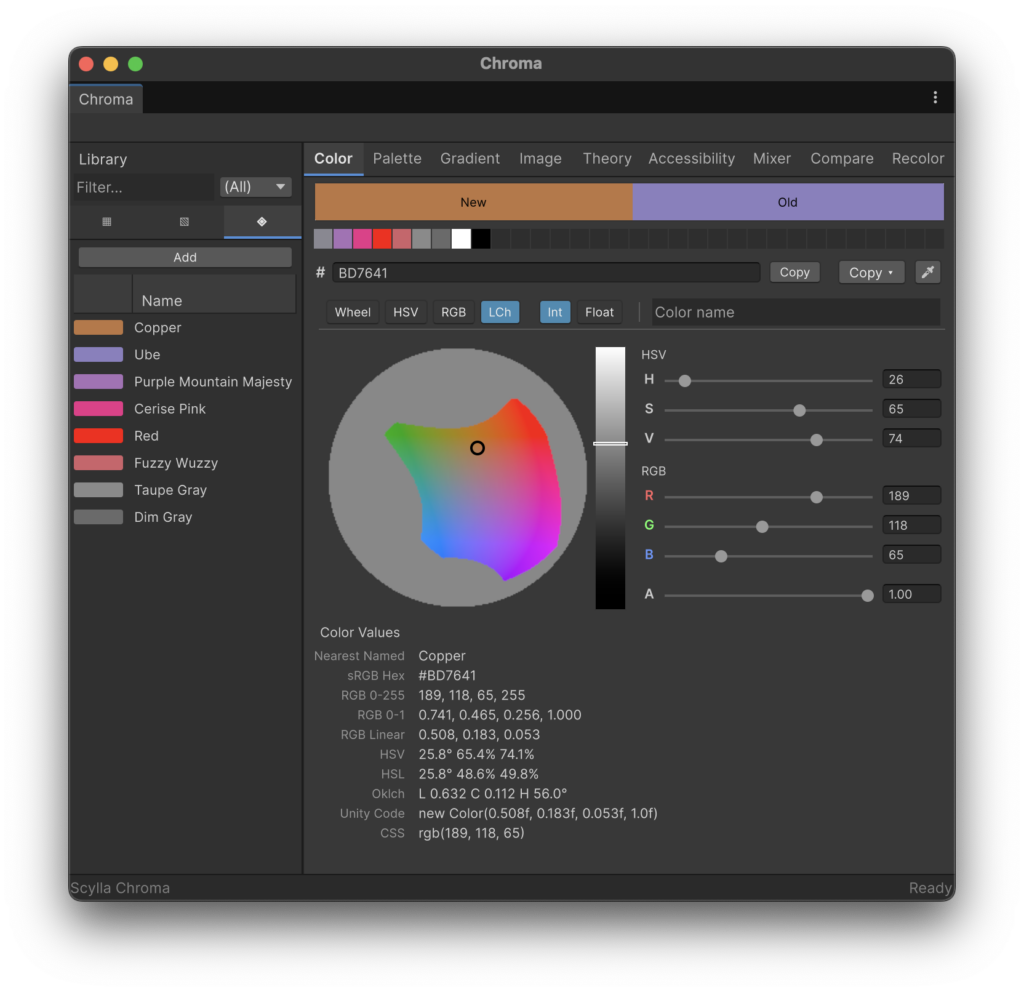
Features
- Four 2D pickers. Wheel (HSV polar), HSV Square (Photoshop-style with a side hue rail), RGB Cube Slice (a 2D slice through the RGB cube with one channel held fixed), LCh Plane (Oklch chroma/hue at fixed Oklab lightness, with a side lightness rail). Switch with the View toggle buttons on the Color tab toolbar; the choice is persisted across window opens.
- Slice dropdown. Visible only when View is RGB. Picks which RGB channel the slice holds fixed (Red Fixed, Green Fixed, Blue Fixed). Default is Red Fixed (green on X, blue on Y).
- Eight channel sliders. Gradient-filled sliders for H, S, V, R, G, B, and A. Each slider’s background previews what the color would be at each value of that channel given the others. The Oklch lightness axis drives the LCh Plane picker’s lightness strip and is exposed through the L slider in the channel group.
- Integer / Float input mode. A toolbar toggle switches the R, G, B numeric fields between Integer (0-255) and Float (0.000-1.000). HSV, alpha, and Oklab sliders ignore the mode and keep their natural units.
- Web-safe mode. A Web toolbar toggle (after the Integer / Float group, accent-tinted when on) restricts authoring to the classic 216-color web-safe palette, where each RGB channel is held to one of six steps (
00,33,66,99,CC,FF). When enabled, all four pickers and their hue / lightness side strips render the posterized web-safe grid, and the active color snaps to the nearest web-safe color from every input source (picker click, slider drag, hex entry, name lookup, eyedropper). Alpha is never quantized. The toggle is persisted per-user and cleared by the window’s Reset action. - Hex field. A header-row hex entry accepting
#RGB,#RRGGBB,#RRGGBBAA, and the same forms without a leading#. Validates on each keystroke; a match updates the active color immediately. - Name search field. A toolbar search field that resolves a typed name to a color from your preferred named-color database. Match order is exact, then prefix, then substring (case-insensitive). Four databases ship: Chroma Colors (866 curated entries, the default), CSS Color Module Level 4 (148 entries), X11 (CSS L4 superset), and RAL Classic (an industrial paint subset). The default database is set in Preferences.
- Multi-space readout. Live display of the active color in ten representations: Nearest Named, sRGB Hex, RGB 0-255, RGB 0-1, RGB Linear (linear-light, no gamma), HSV, HSL, Oklch, Unity Code (
new Color(...)with linear-space float arguments), and CSSrgb()/rgba(). Each row is double-click-to-copy. - Copy formats menu. A dropdown button in the header row that copies the active color as one of Hex, Unity
Colorliteral, UnityColor32literal, CSSrgb()/rgba(), HLSLfloat4, or JSON. The status bar confirms the copy with a transient message. - Screen eyedropper. A button in the header row that engages a magnifier overlay and samples a color from anywhere on the desktop, not just inside Unity. Useful for grabbing reference colors from a browser, an image editor, or another open Unity scene view.
- Color preview strip. Always-visible New / Old swatch pair shared across every tab. The left swatch shows the active color, the right shows the most recently displaced color. Double-click the Old swatch to swap the two.
- Color history strip. Up to 32 recent colors, persisted via EditorPrefs across window opens. Double-click any swatch to make it the active color. Right-click for Remove and Clear All.
- Favorites strip. Up to 16 pinned color slots, also persisted. Pin the current active color with the + button; click any slot to apply; right-click for Remove and Clear All. Favorites are a per-user EditorPrefs store; for project-scoped reference colors, use a Color Swatch Collection asset (see Palette and Gradient assets).
- Out-of-gamut handling on LCh Plane. Pixels that fall outside the sRGB gamut at the chosen lightness render as the panel background rather than a clamped color, so the picker only offers colors the monitor can actually display.
Recipes
These recipes cover the Color tab’s authoring workflows as self-contained tasks. Each one answers a single practical goal, so scan the names and jump to the one that matches what you’re trying to do right now. Start with the first recipe if you’re new to the Color tab – it covers the picker choices that the rest of them assume.
Choose the right 2D picker for the job
Problem. You’ve opened the Color tab and the default Wheel picker isn’t giving you the precision you want, or you’re working on perceptually-balanced UI colors and the Wheel’s HSV geometry doesn’t map onto your mental model. You want to know which picker to reach for and why, before changing anything.
Solution. The View toggle group on the toolbar switches the 2D picker without changing the active color. Four options are available:
- Wheel – an HSV polar disc where hue is the angle and saturation is the radius. Brightness is controlled by the V slider. The disc texture is cached per V value and only regenerates when V changes, so dragging hue and saturation is responsive even at large panel sizes. Good starting point for most work and the default on first launch.
- HSV – a Photoshop-style rectangle where saturation runs along the X axis and value along the Y axis, with a 24-pixel hue strip on the right edge. This is what designers with a Photoshop background reach for first; it matches the muscle memory from that picker exactly.
- RGB – a 2D slice through the RGB cube. One channel is held fixed (chosen by the Slice dropdown that appears when this mode is active), and the other two become the X and Y axes. The active color’s fixed-channel value sets where in the cube the slice sits. Good for exploring color relationships in the RGB model or matching a specific component value precisely.
- LCh – a polar Oklch disc where chroma (color purity) is the radius and hue is the angle, at a fixed Oklab lightness set by the side strip. Out-of-sRGB-gamut areas render as the panel background so you only see colors the display can actually show. This is the picker to reach for when you need colors that read as equal in perceptual weight – text colors on varying backgrounds, icon fills that don’t fight each other, a palette where the reds and blues feel balanced rather than the reds popping off the screen.
Your choice is saved per-user in EditorPrefs, so Chroma opens to the last picker you used.
Dial in an exact color by hex or HSV
Problem. You have a target color – maybe a brand hex code like #E84B3A, or an HSV value from a design spec – and you want to get it into Chroma precisely without dragging sliders.
Solution. The hex field in the window’s header row accepts the value directly. Type or paste the hex code (with or without the leading #, and with or without the alpha pair at the end) and the active color updates on each valid keystroke:
E84B3Aor#E84B3A– sets the RGB channels, leaves alpha at whatever it was.E84B3AFFor#E84B3AFF– sets all four channels including alpha.E8B– the 3-digit shorthand; each digit is doubled, so this is equivalent toEE88BB.
If you have an exact HSV value instead, use the H, S, and V sliders in the channel rail directly. The numeric field next to each slider accepts typed input. The Int / Float toolbar toggle affects only the R, G, B fields; H stays in degrees (0-360), S and V stay in percent (0-100) regardless of mode.
Constrain authoring to web-safe colors
Problem. You’re targeting a context that only accepts the classic 216-color web-safe palette – retro or pixel-art work, a legacy display target, or a style guide that mandates the 00/33/66/99/CC/FF color steps – and you want every color you pick to land on that grid automatically instead of rounding hex values by hand.
Solution. Click the Web toggle in the Color tab toolbar (to the right of the Integer / Float group). It tints to the accent color when active, and two things change at once:
- Display. All four pickers and their side strips (the hue rail on HSV, the lightness rail on LCh) repaint as the posterized web-safe grid – flat blocks of the 216 colors instead of a continuous spectrum, so you can see exactly which colors are reachable.
- Value. The active color snaps to the nearest web-safe color immediately, and stays snapped no matter how you set it afterward: clicking in any picker, dragging the R / G / B / H / S / V sliders (they visually settle on the nearest web-safe notch), typing a hex code, looking up a name, or sampling with the eyedropper. The sRGB Hex readout confirms it – every pair reads
00,33,66,99,CC, orFF.
Toggle Web off to return the pickers to the continuous spectrum and stop forcing the value.
Look up a color by name
Problem. You want “Cerulean Frost” or “RAL 3001” or just “salmon”, and you’d rather type a name than hunt through a palette or guess a hex value.
Solution. The Color name search field on the right side of the Color tab toolbar accepts a name query and resolves it against the active named-color database on every keystroke. The match order is exact first, then prefix, then substring, all case-insensitive:
- Start typing – the color updates as soon as a match exists.
- The Nearest Named row in the readout below shows the closest name in the database to the current active color, so you can see where your current color maps as a sanity check.
- To change which database the field searches, open Edit > Preferences > Scylla > Chroma (or see Preferences) and change the Default Named-Color Database setting.
Four databases ship:
- Chroma Colors – 866 curated descriptive names, the default. Best for general creative work.
- CSS Color Module Level 4 – 148 names; the ones CSS developers recognize.
- X11 – a superset of CSS Level 4 with the historic X Window System names.
- RAL Classic – a representative subset of the industrial paint standard, useful for product color work.
Eyedrop a color from anywhere on screen
Problem. You’re matching a color from a reference image in a browser, another application, or a design mockup that’s open alongside Unity. You want to grab that exact pixel without guessing.
Solution. Click the eyedropper button in the window’s header row to engage the screen sampler. The cursor changes to a crosshair with a magnifier overlay showing a zoomed-in view of the pixels around it. Then:
- Move the cursor over the color you want to sample – anywhere on the desktop, not just inside the Unity window.
- Click to commit the sample. The sampled color becomes the active color and the previous active color is recorded in the history strip.
- Press Escape to cancel and leave the active color unchanged.
The sampler reads from the composited screen pixel under the cursor via the OS, so it works on browser tabs, video frames, image editors, and any other visible window. It does not capture transparency – colors sampled from semi-transparent overlays are read as composited against whatever is behind them, since the OS returns the rasterised pixel.
Read the active color in any color space
Problem. You’ve landed on a color and now you need its value in a specific format – maybe HSV for a shader uniform, CSS for a web handoff, or a Unity Color literal to paste into code. All of them, at once, without switching tools.
Solution. The Color Values readout at the bottom of the Color tab shows ten representations of the active color simultaneously. Every row updates in real time as you adjust the pickers or sliders:
| Row | Example |
|---|---|
| Nearest Named | Crimson |
| sRGB Hex | #DC143C or #DC143CFF with alpha |
| RGB 0-255 | 220, 20, 60, 255 |
| RGB 0-1 | 0.863, 0.078, 0.235, 1.000 |
| RGB Linear | 0.714, 0.006, 0.044 (linear-light, no alpha) |
| HSV | 348.0° 91.0% 86.3% |
| HSL | 348.0° 83.3% 47.1% |
| Oklch | L 0.628 C 0.258 H 29.2° |
| Unity Code | new Color(0.714f, 0.006f, 0.044f, 1.0f) (linear-space) |
| CSS | rgb(220, 20, 60) or rgba(220, 20, 60, 0.50) with alpha |
Double-click any row to copy its value to the clipboard. The status bar at the bottom of the Chroma window confirms the copy with a brief message.
Copy the active color in a specific format
Problem. You need to hand off the color to a specific context – a shader that expects HLSL float4, a JSON config file, a CSS stylesheet, or a Unity C# script – and the readout row for that format doesn’t match the exact syntax your context needs.
Solution. The Copy dropdown button in the window’s header row opens a menu with six output formats. Click the one you want and it lands on the clipboard immediately:
- Hex (#RRGGBB) – uppercase hex, with alpha appended only when the color is not fully opaque.
- Unity Color – a
new Color(r, g, b, a)literal with linear-space float arguments. - Unity Color32 – a
new Color32(r, g, b, a)literal with 0-255 byte arguments. - CSS rgb() –
rgb(r, g, b)when opaque,rgba(r, g, b, a)with a two-decimal alpha when not. - HLSL float4 –
float4(r, g, b, a)with sRGB three-decimal floats. - JSON –
{"r": 0.863, "g": 0.078, "b": 0.235, "a": 1.000}with sRGB values.
The status bar confirms the copy with a transient message that auto-reverts after a few seconds.
Build a working color shortlist with history and favorites
Problem. You’re iterating on a color scheme and you need to compare several candidates without losing any of them. You want a quick way to flip between recent picks and pin the ones worth keeping.
Solution. The history and favorites strips sit at the top of the Chroma window and are shared across all tabs.
History is automatic. Every time you change the active color, the previous color is recorded in the history strip (up to 32 slots). Double-click any history swatch to restore that color as the active color, which in turn records the current color back into the strip. This gives you an undo-style trail of your recent picks that survives tab switches and window reopens.
Right-click a history swatch for Remove (single entry) or Clear All (the whole strip). The strip is persisted in EditorPrefs so yesterday’s picks are still there when you reopen Chroma today.
Favorites are manual. When you land on a color worth keeping, click the + button at the end of the favorites strip to pin it. Pinned colors don’t fall off automatically – the strip holds up to 16 slots, and a slot stays pinned until you remove it via right-click > Remove or wipe the whole strip with Clear All.
Click any pinned favorite to make it the active color.
Move the active color into a palette or gradient
Problem. You’ve picked the color you want in the Color tab and now you need to get it into an actual Palette and Gradient asset or wire it into an active gradient stop.
Solution. The Color tab is the feeding point for the other Chroma tabs. Once the active color is set, the next move is one of:
- Switch to the Palette Editor and click Add in its toolbar to append the active color as a new swatch.
- Switch to the Gradient Editor and click on the gradient bar to insert a stop at the active color.
- Double-click the Old swatch in the color preview strip to swap New and Old, useful for A/B comparing two candidates before committing to one.
- Open the Mixer tab to blend the active color with a second color across four color spaces simultaneously.
- Open the Accessibility tab to check the active color’s contrast against a background or its appearance under one of the supported color-blindness simulations.
Tips and pitfalls
- The View choice persists across window opens but is per-user, not per-project. A different user opening the same project starts with their own last-used view.
- The Web toggle persists per-user across window opens and is cleared by the window’s Reset action. Enabling it snaps the current active color immediately; disabling it stops forcing new values but does not un-snap a color that was already snapped while the mode was on.
- The Wheel picker’s disc texture is cached per V value. Dragging hue or saturation is allocation-free; changing V triggers a regenerate, which is fast but not free on every frame. The picker absorbs continuous V drags from the slider rail without thrashing the cache.
- The LCh Plane picker’s background-colored areas are not transparent or empty; they represent Oklch coordinates whose sRGB conversion falls outside the displayable gamut at the chosen lightness. Drop the lightness slightly to surface more saturated colors at the same hue, or raise it to surface pastels.
- The RGB Cube picker has a hue-pinning behavior worth knowing: with a highly saturated color loaded, dragging the fixed channel’s slider can lock the H slider to a particular value (180 degrees with Red Fixed, 300 degrees with Green Fixed, 60 degrees with Blue Fixed). This is correct HSV math, not a bug. Load a less saturated starting color before dragging if you need hue to respond.
- The hex field is the canonical way to enter a full color as text in one go. The integer R/G/B fields in the slider rail edit one channel at a time, which is occasionally what you want but is rarely the fastest path to a target color.
- The Nearest Named row in the readout updates immediately when the Default Named-Color Database preference changes. Switch to CSS Color Module Level 4 for web-aligned naming, RAL Classic for paint-aligned naming, or back to Chroma Colors for the broadest descriptive coverage.
- The eyedropper does not capture transparency. Colors sampled from semi-transparent overlays on the desktop are read as composited against whatever is behind them.
- The + pin button on the favorites strip silently does nothing when the strip is full at 16 entries. Right-click any existing slot and choose Remove to free a slot first.
- The history and favorites strips are EditorPrefs storage; switching to a different Unity user account or wiping EditorPrefs clears both. Project-shared color collections belong in
ColorSwatchCollectionAssetassets (see Palette and Gradient assets and Palette Editor). - Status-bar copy confirmations auto-revert after a few seconds. If a copy did not take effect, check that the Chroma window has keyboard focus – click into the window first, then double-click the readout row or select from the copy menu.